OKR template to to finalize and publish my book using KDP
Your OKR template
The second step is to ensure the manuscript is thoroughly edited with no grammatical or technical errors. This step involves careful reading of the manuscript for clarity, verifying the accuracy of technical terms and correcting any detected mistakes.
The final step is to successfully publish the book on KDP by meeting all necessary requirements. This will involve designing a compliant book cover, ensuring the manuscript aligns with KDP guidelines, and successfully uploading the book on the KDP platform.
Achieving all of these objectives will ensure the book is not only properly formatted and error-free, but also successfully published and available for readers on the Kindle platform.
 ObjectiveTo finalize and publish my book using KDP
 KRAchieve a professionally designed book cover and interior format
 Review and approve final design and layout
- Seek a typesetter for interior formatting
- Hire a professional graphic designer for cover design
- KRComplete final edit of manuscript, ensuring no grammatical or terminology errors
- Thoroughly read the entire manuscript for clarity
- Verify usage and accuracy of technical terms
- Correct any spelling or grammatical mistakes found
- KRSuccessfully publish the book on KDP with all features and requirements met
- Design engaging and compliant book cover
- Write and proofread manuscript, ensuring it meets KDP guidelines
- Successfully upload book on KDP platform
How to edit and track OKRs with Tability
You'll probably want to edit the examples in this post, and Tability is the perfect tool for it.
Tability is an AI-powered platform that helps teams set better goals, monitor execution, and get help to achieve their objectives faster.
With Tability you can:
- Use AI to draft a complete set of OKRs in seconds
- Connect your OKRs and team goals to your project
- Automate reporting with integrations and built-in dashboard
Instead of having to copy the content of the OKR examples in a doc or spreadsheet, you can use Tability’s magic importer to start using any of the examples in this page.
The import process can be done in seconds, allowing you to edit OKRs directly in a platform that knows how to manage and track goals.
Step 1. Sign up for a free Tability account
Go tohttps://tability.app/signup and create your account (it's free!)
Step 2. Create a plan
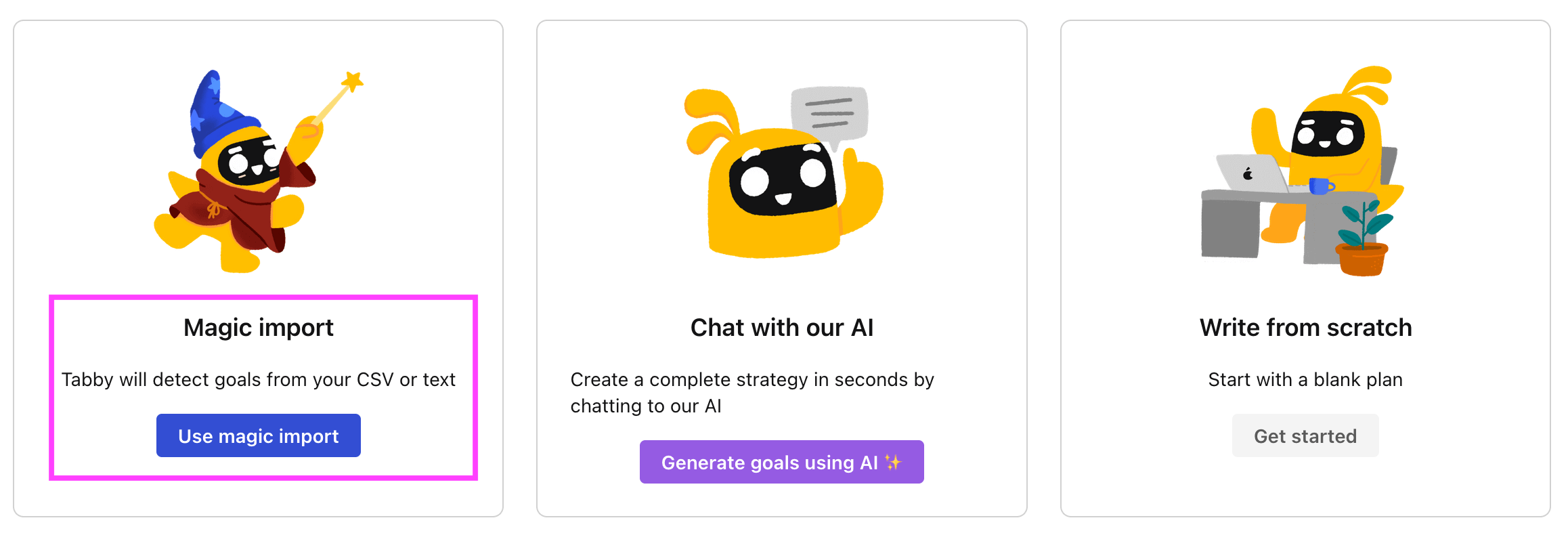
Follow the steps after your onboarding to create your first plan, you should get to a page that looks like the picture below.
Step 3. Use the magic importer
Click on Use magic import to open up the Magic Import modal.
Now, go back to the OKR examples, and click on Copy on the example that you’d like to use.

Paste the content in the text import section. Don’t worry about the formatting, Tability’s AI will be able to parse it!
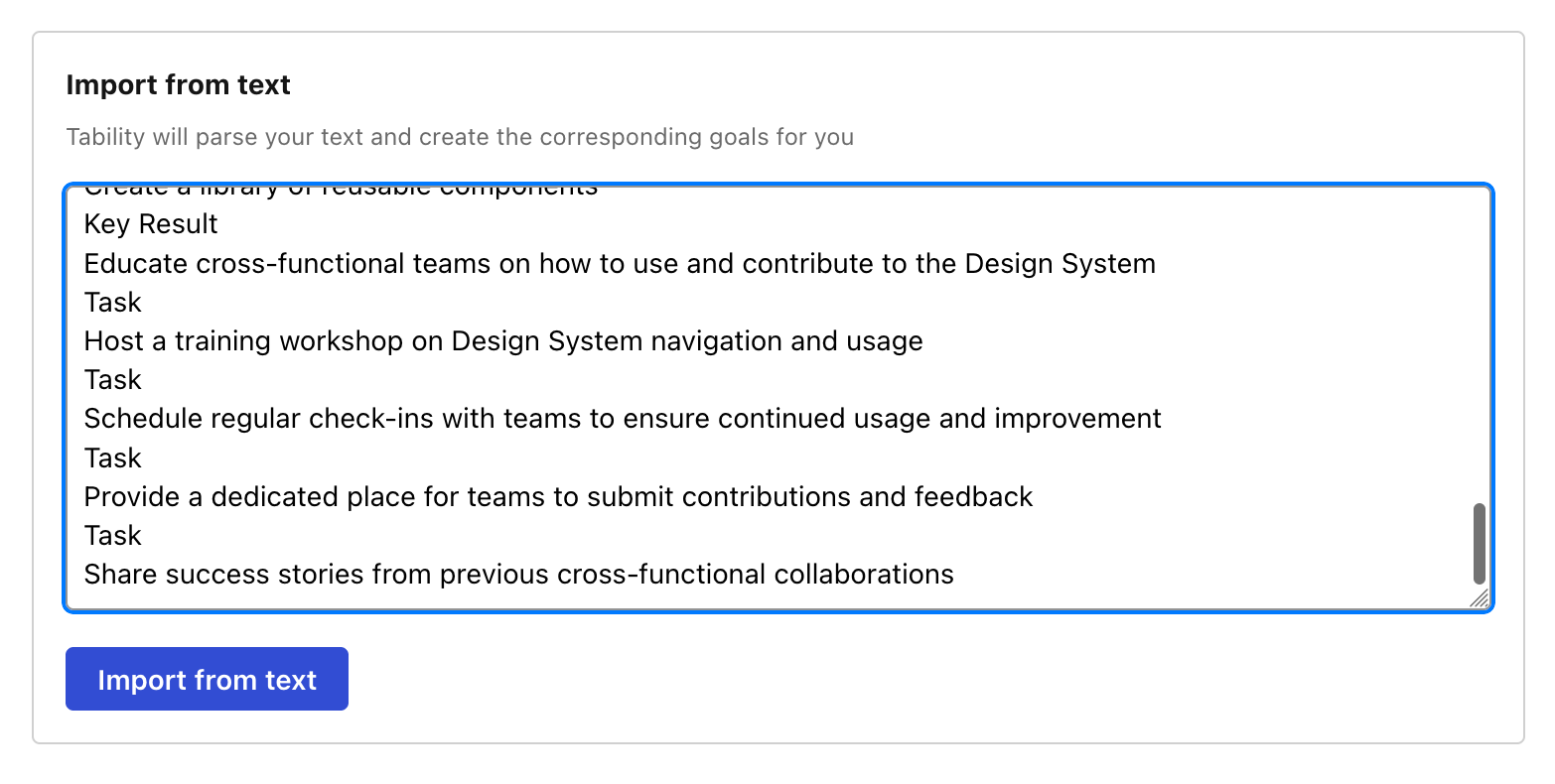
Now, just click on Import from text and let the magic happen.
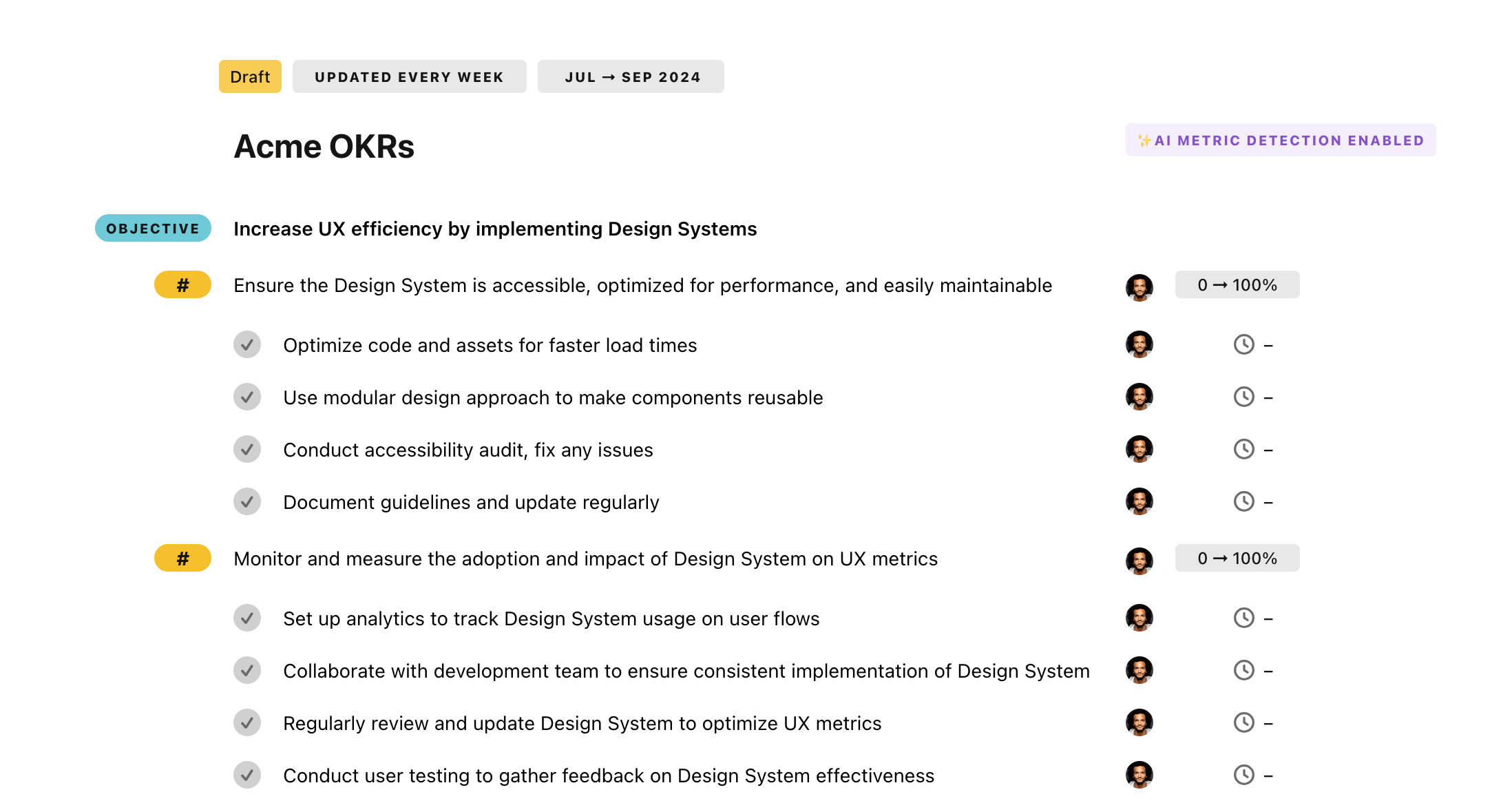
Once your example is in the plan editor, you will be able to:
- Edit the objectives, key results, and tasks
- Click on the target 0 → 100% to set better target
- Use the tips and the AI to refine your goals
Step 4. Publish your plan
Once you’re done editing, you can publish your plan to switch to the goal-tracking mode.
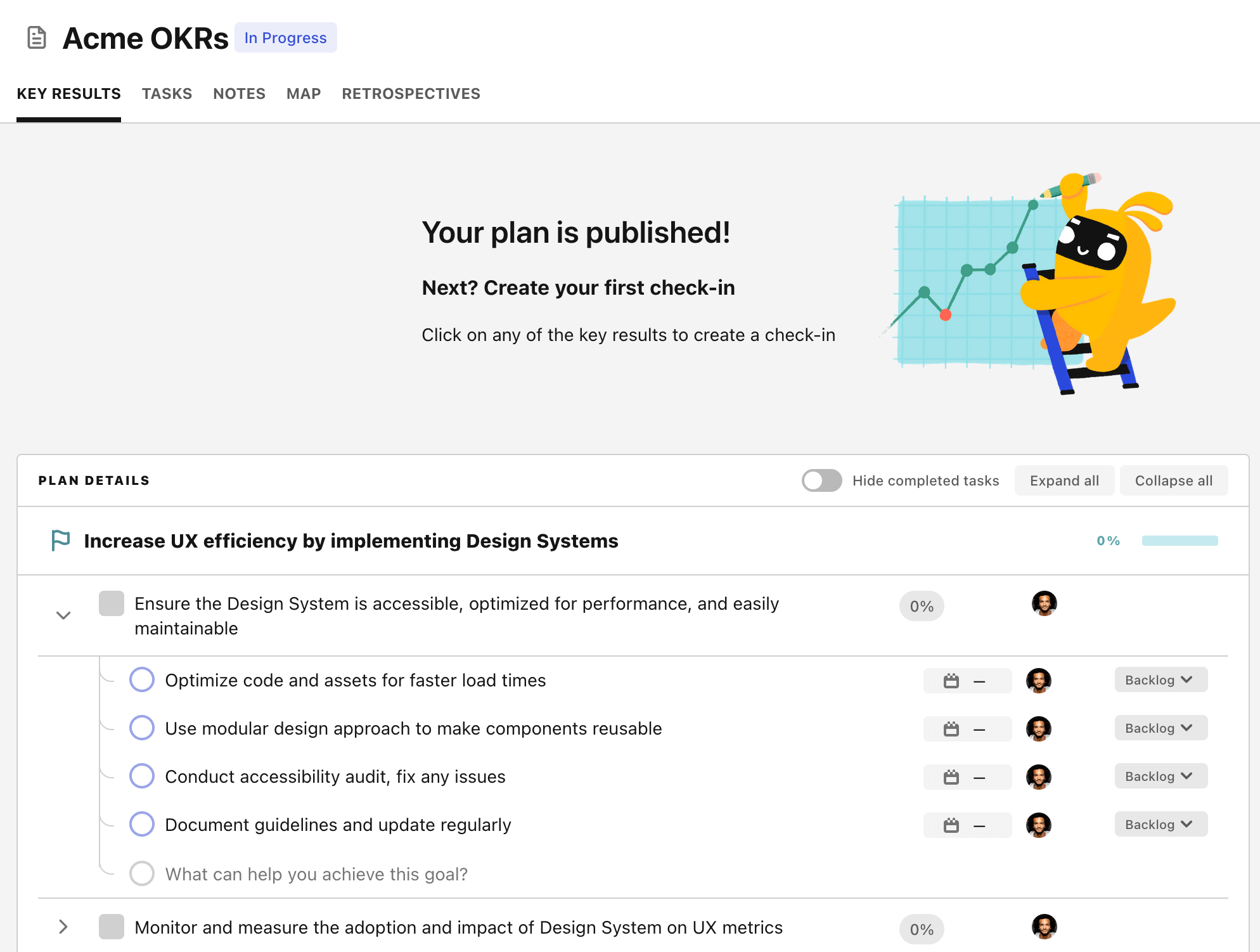
From there you will have access to all the features that will help you and your team save hours with OKR reporting.
- 10+ built-in dashboards to visualise progress on your goals
- Weekly reminders, data connectors, and smart notifications
- 9 views to map OKRs to strategic projects
- Strategy map to align teams at scale